¶ 📘 Objective
This guide explains how to Create a Provisioning Script and also how to use it for that.
¶ ⚙️ When to use
The execution of the script is used to authorize and provision a onu in made4olt
¶ 🧭 Step-by-step to create a Provisioning Script
¶ Step 1️⃣
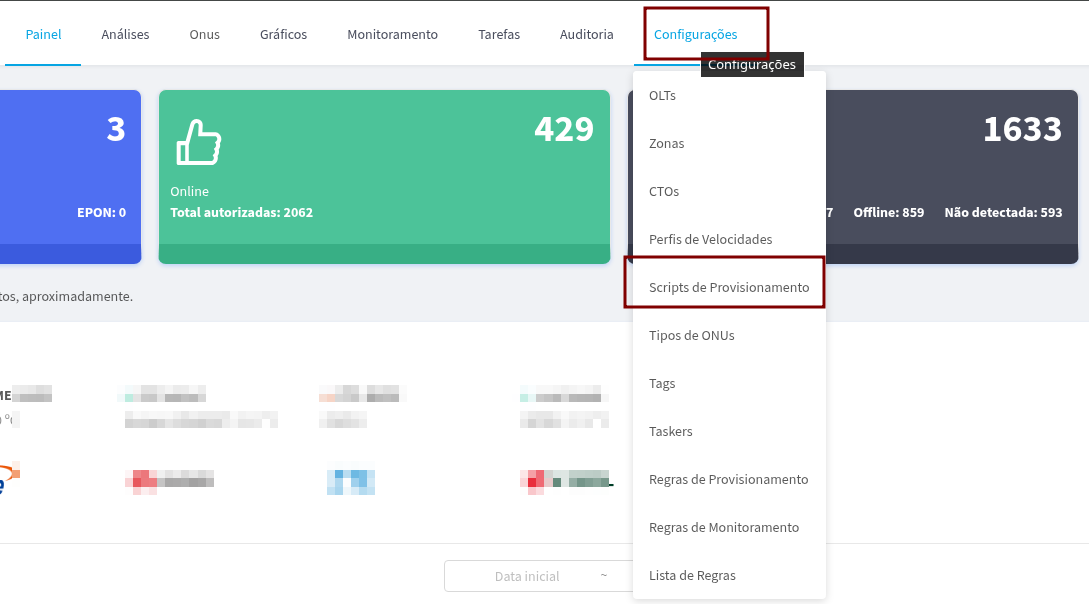
In the side menu, go to Settings → Provisioning Scripts.
¶ Step 2️⃣
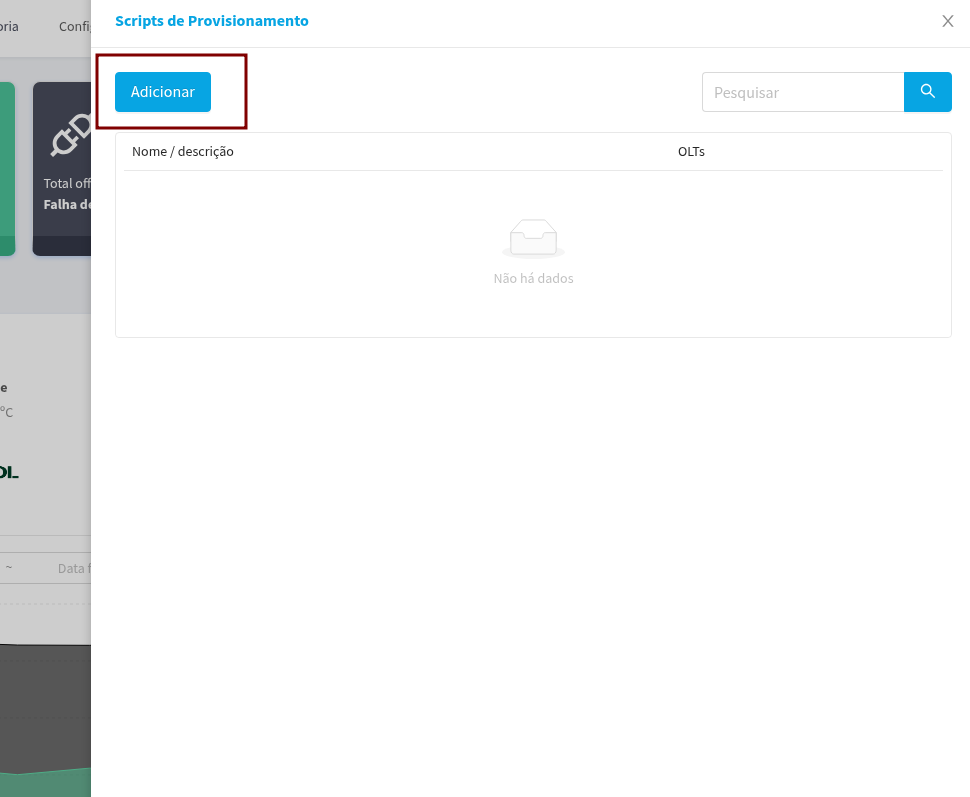
Click on Add
¶ Step 3️⃣
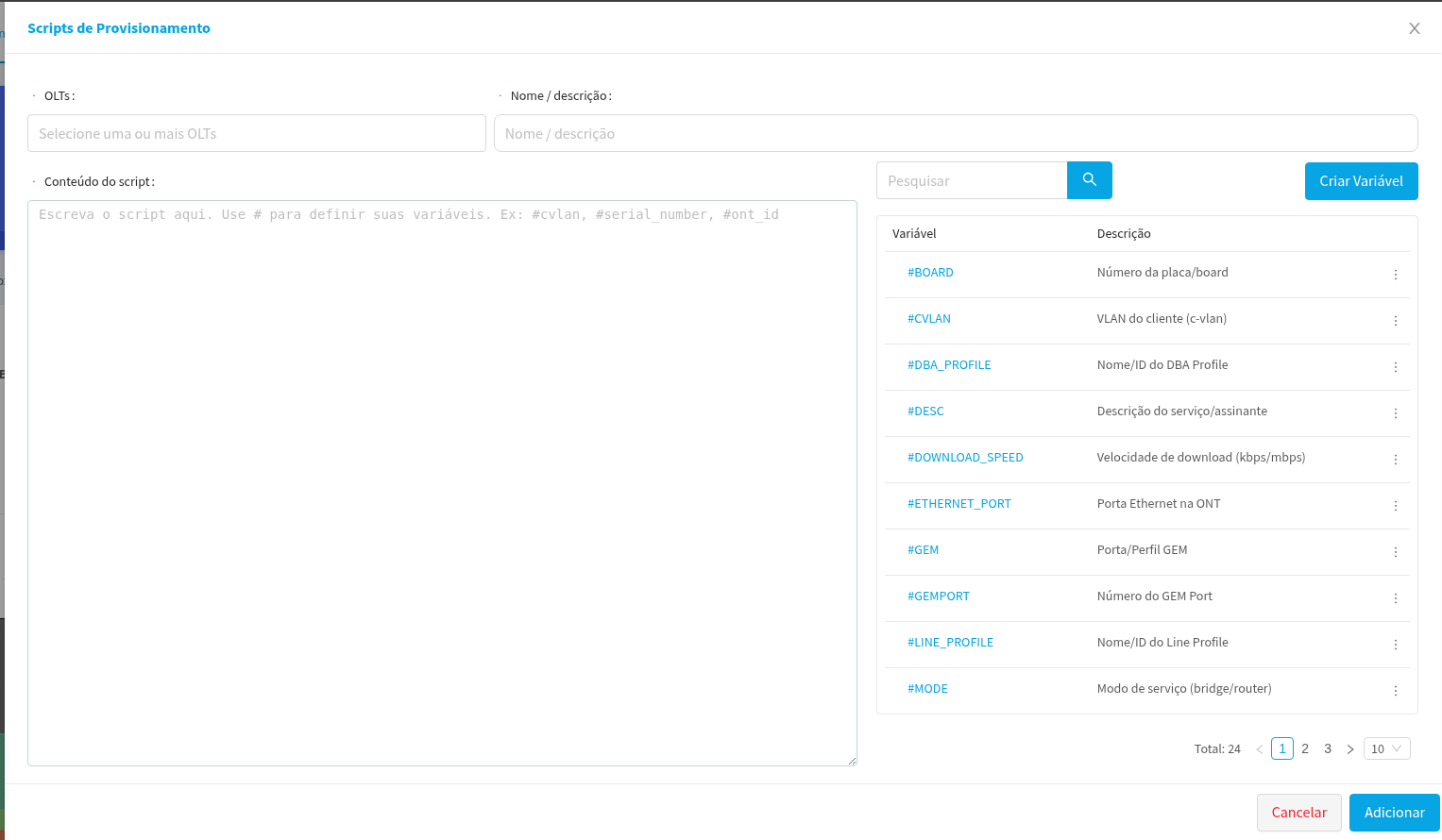
Select the olt that will run the Script, name it, and paste the Script content
¶ Note
It is possible to use variables already created or also create new ones for the Script
¶ Example of Script for Huawei setting up PPPoE
config
interface gpon #BOARD/#SLOT
ont add #PORT #ONT_ID sn-auth #SERIAL_NUMBER omci ont-lineprofile-id #LINE_PROFILE ont-srvprofile-id #SERVICE_PROFILE desc #DESC
ont ipconfig #PORT #ONT_ID pppoe vlan #VLAN priority 5 user-account username #PPPOE_USER password #PPPOE_PASS
quit
service-port vlan #VLAN gpon #BOARD/#SLOT/#PORT ont #ONT_ID gemport #VLAN multi-service user-vlan #VLAN tag-transform #TAG_TRANSFORM_MODE
quit
¶ Note
It is necessary to adapt the reality of the settings used in your network if you use the example script
¶ 🧭 Step-by-step guide to using a Script in Provisioning
¶ 1️⃣ Step 1
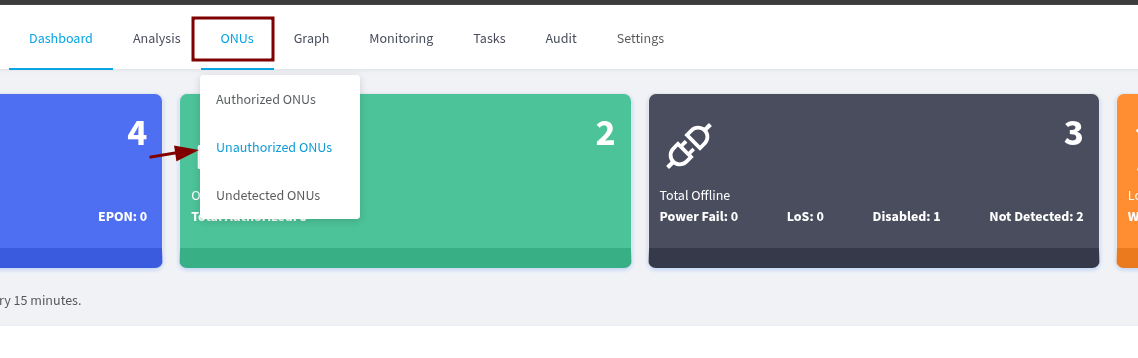
Go to Unprovisioned ONUs > Authorize.
¶ Step 2️⃣
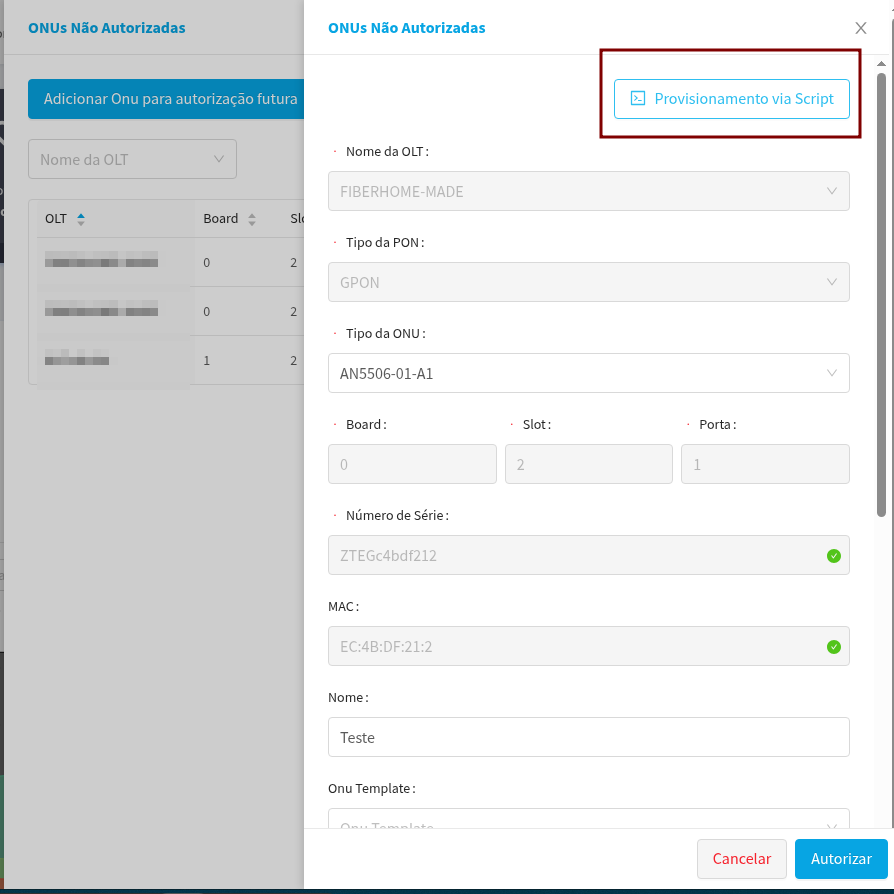
Select Script-based Provisioning
¶ Step 3️⃣
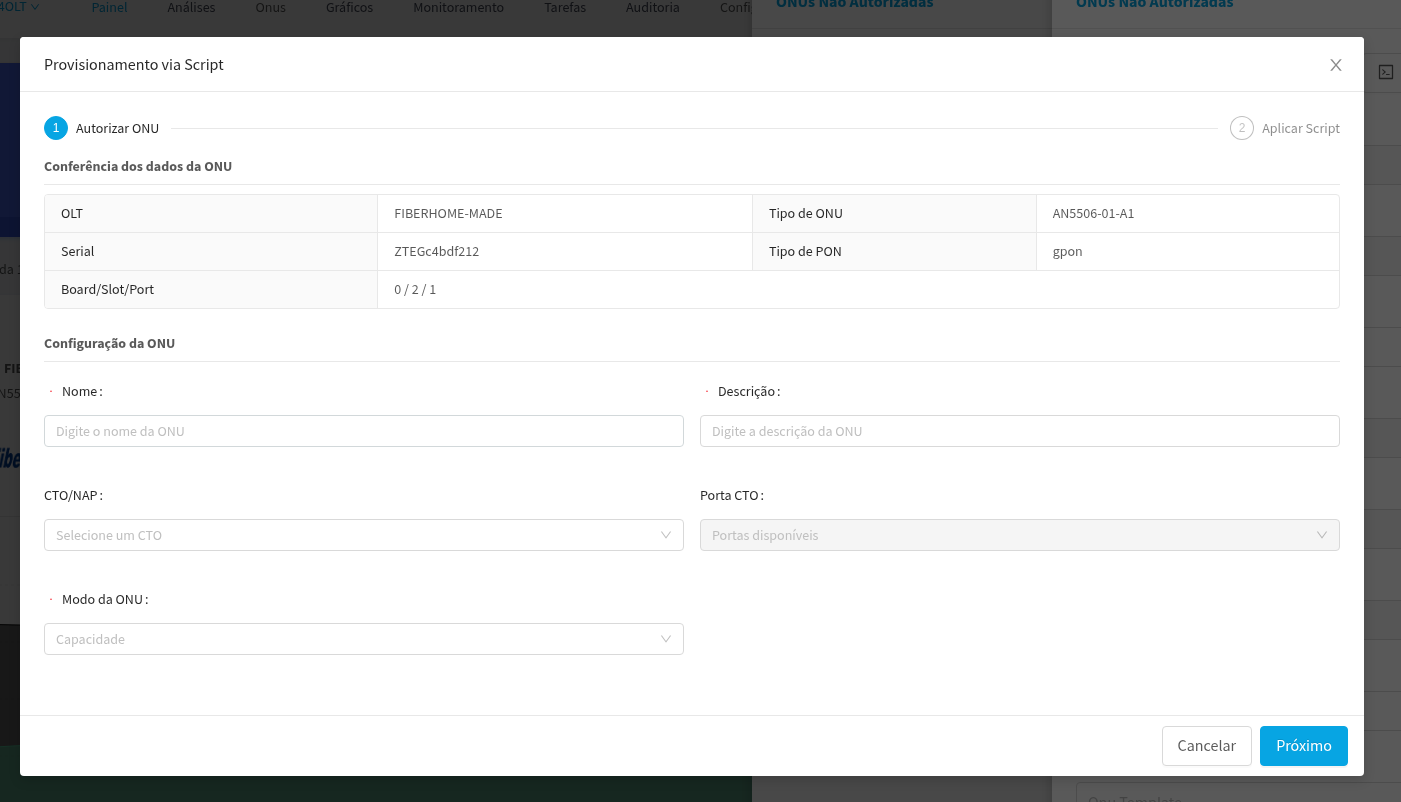
Fill in the available fields, where Name, Description, and Mode of onu are mandatory, and then click the Next button
¶ Step 4️⃣
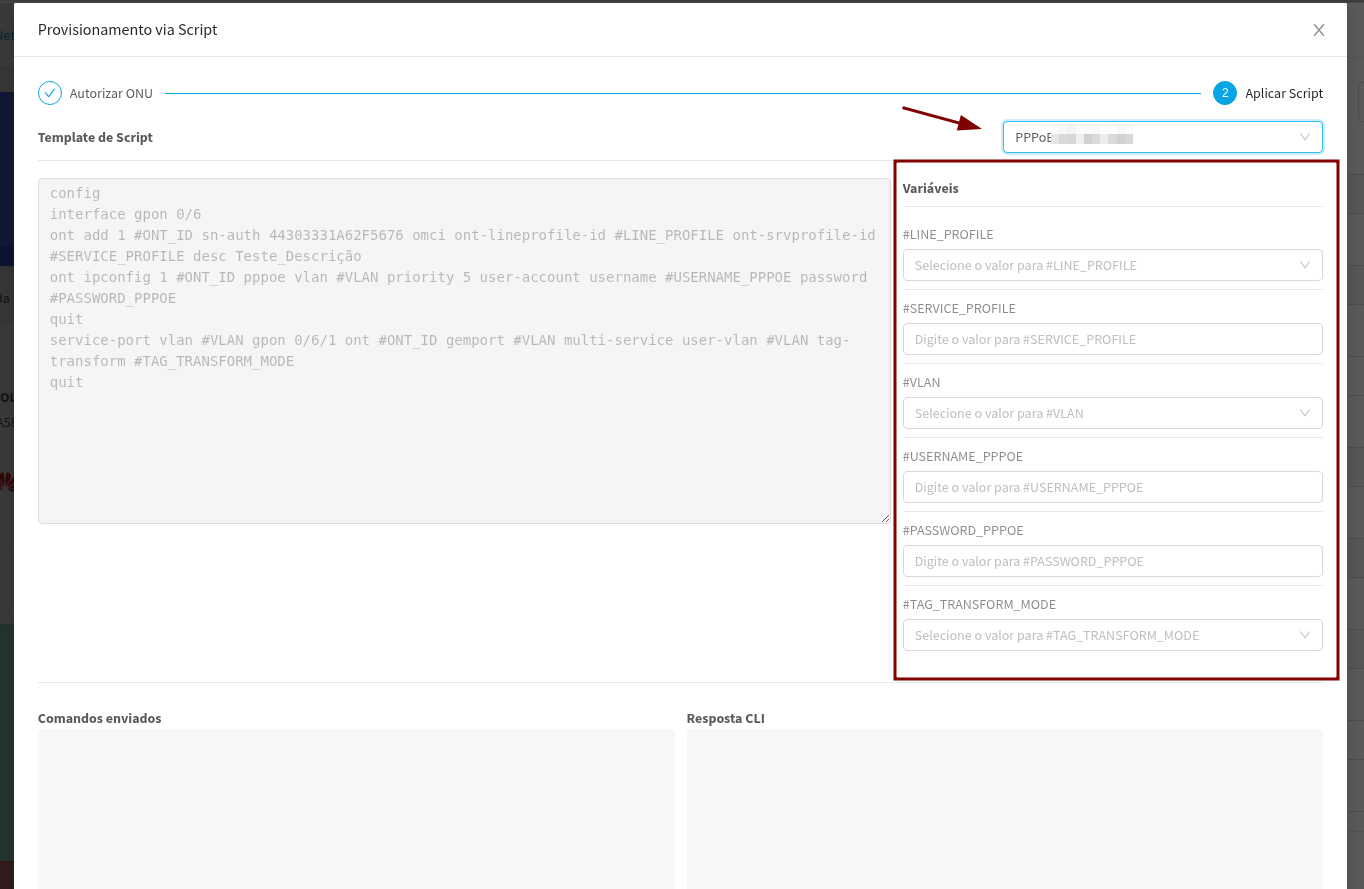
Select the desired script and fill in the variables
¶ 3️⃣ Step 5
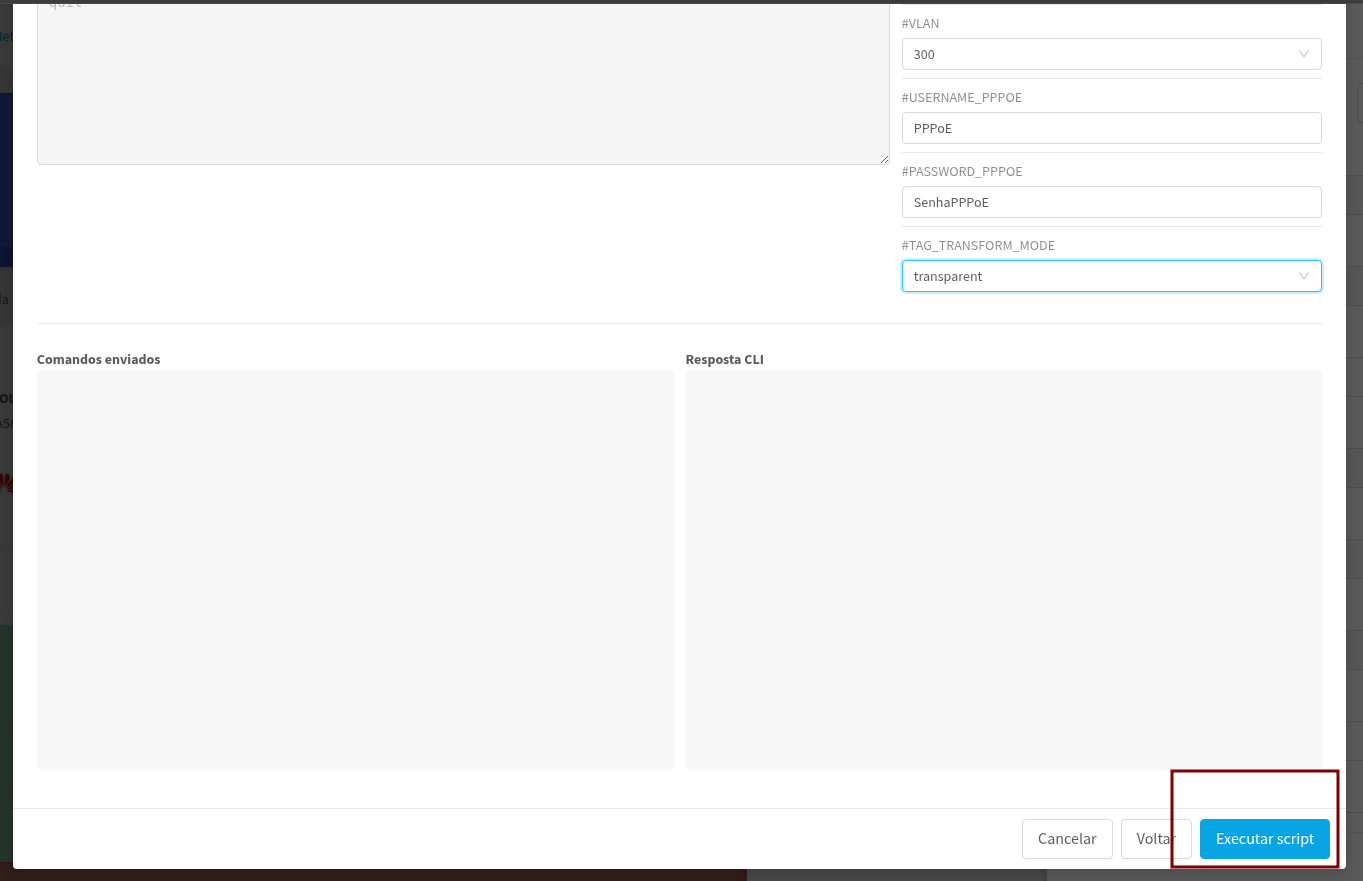
Review how the script turned out and then click on Run script
¶ ✅ Expected result
The script will run displaying the output of the commands and then finish to complete the provisioning of the onu.