¶ ONU Template
All the data that will be shown here are fictitious and used for demonstration purposes only.
¶ What is the ONU Template?
The template is a template that can be configured so that when provisioning a new ONU, it is not necessary to perform the same configuration several times.
¶ What is a template for?
When selected, the template will automatically fill in the fields that have already been pre-configured.
¶ Template creation flow
To create a new Template in Made4OLT, you need to follow the following steps.
¶ First let's navigate to the Templates management screen
- Let's navigate to the screen where the templates are created. When accessing the system, we are faced with the following screen as the home page.
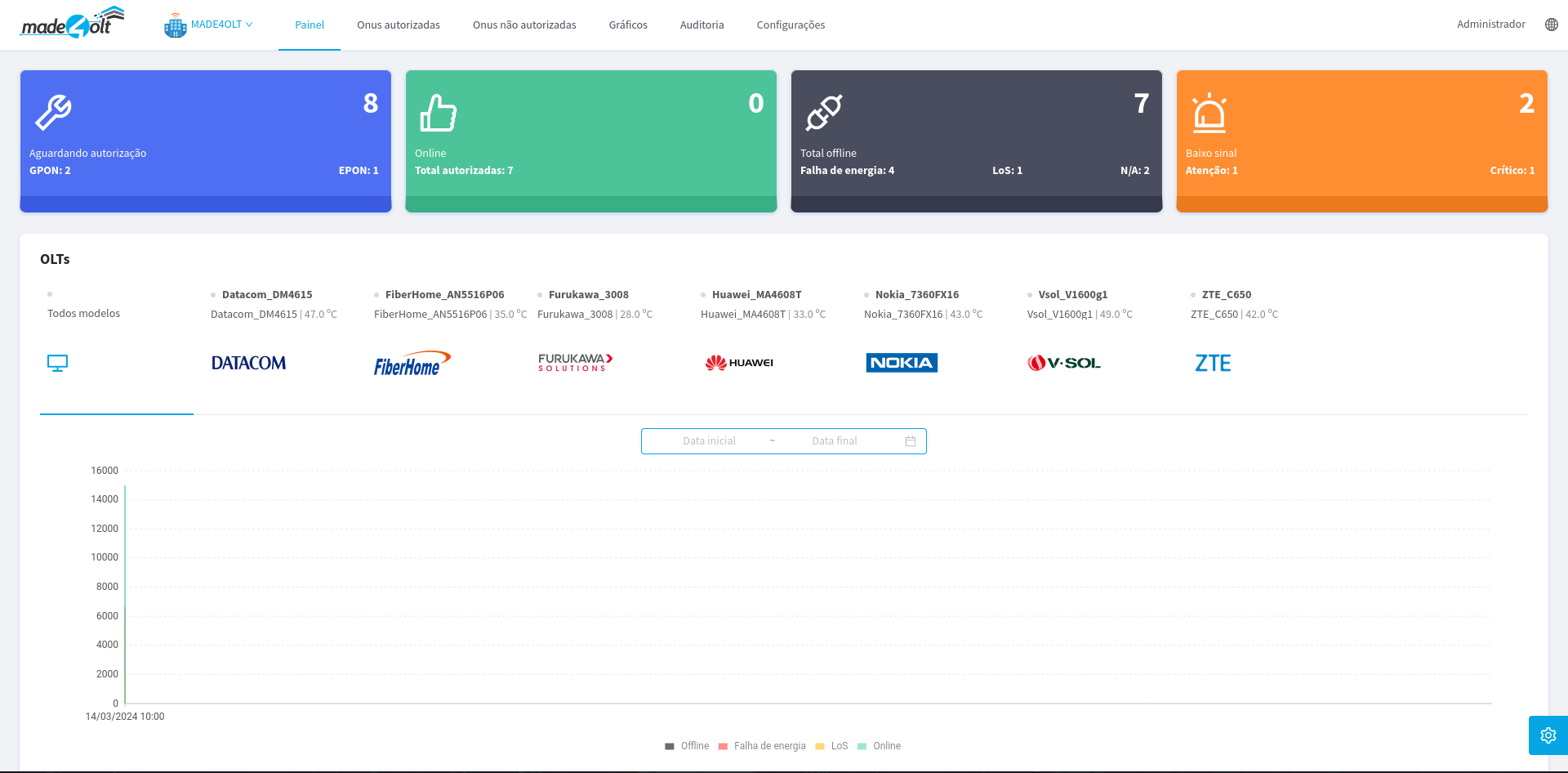
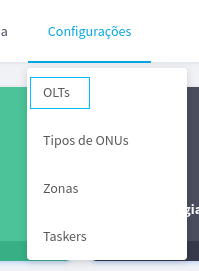
- Then, in the navigation bar found at the top of the screen, we will select the option Settings.

- A Dropdown menu will open, where we will select the option OLTs.
- A side menu will appear listing the OLTs registered in your system.
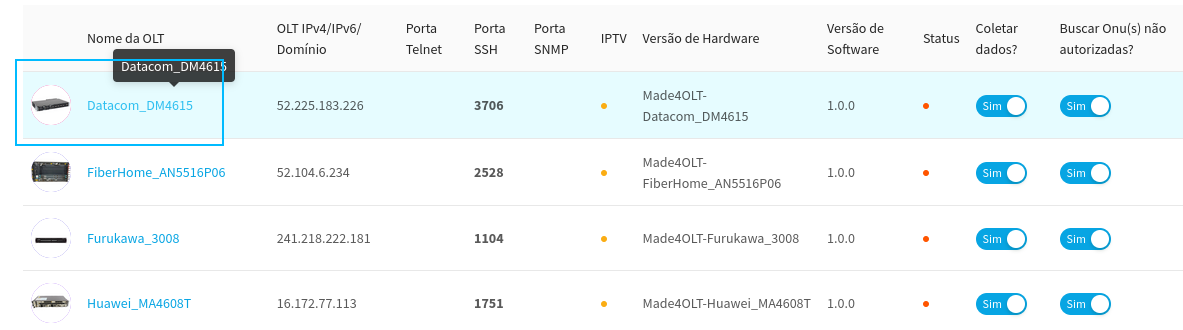
In this case, we will select OLT Datacom_DM4615
- Thus, the user will be redirected to the chosen OLT management screen.
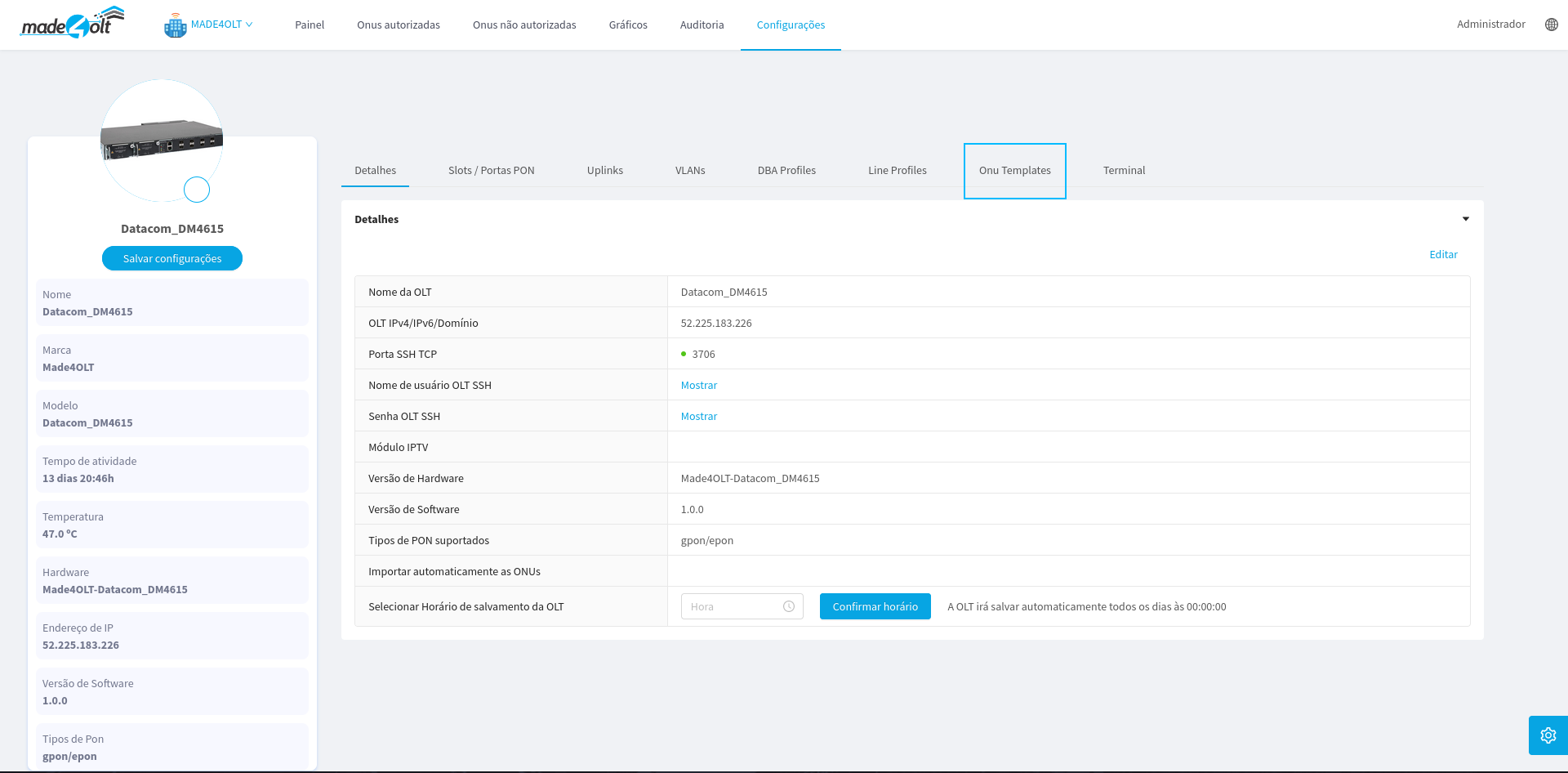
At this point we will pay attention only to the template.
- Here we select the option UN Templates

- After selecting, the system will show us the following screen.
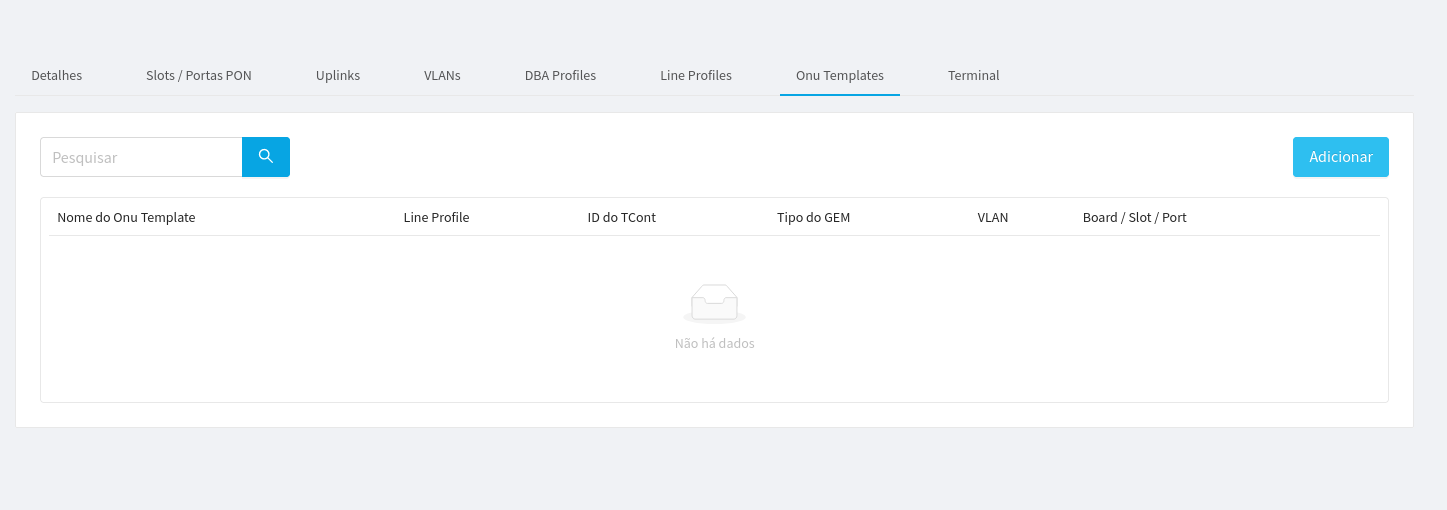
¶ From now on, we can create and edit our templates
¶ Now let's move on to the creation process step by step.
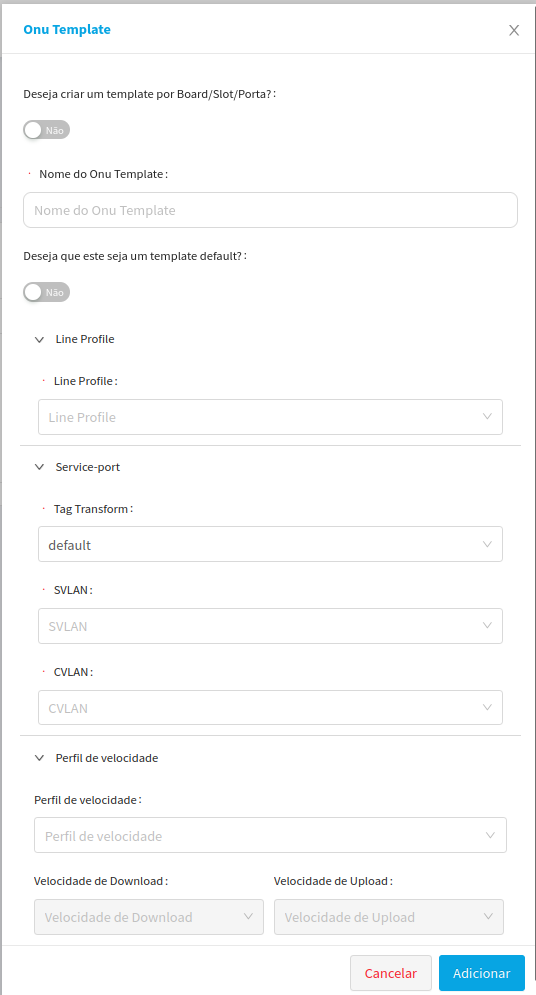
- To start creating a template, click the blue button Add at the top right of your screen. A side menu will open on the right for creating the template.
-
-
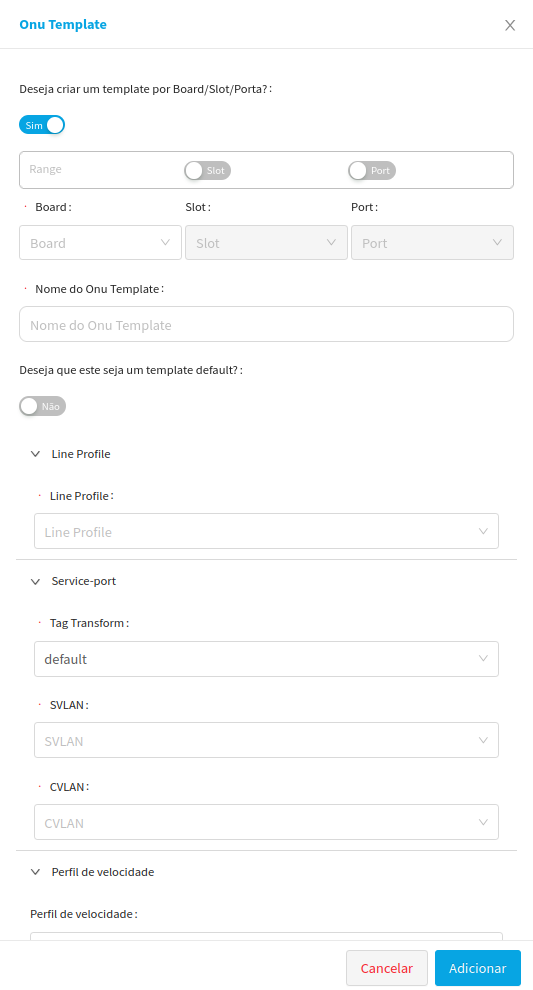
A activating the Board/Slot/Port key and the default template key is optional But here we will demonstrate with all of them activated.
-
When active, this feature will work as a type of filter, ensuring that this template is only displayed for specific ONUs. The feature is a type of filter that will separate the templates for more specific cases.
-
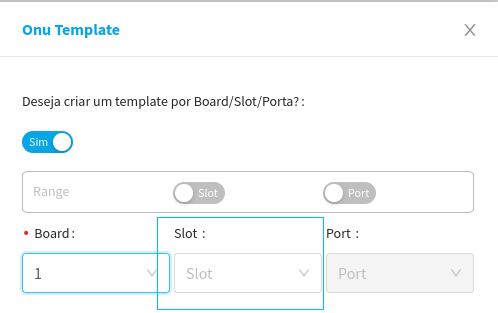
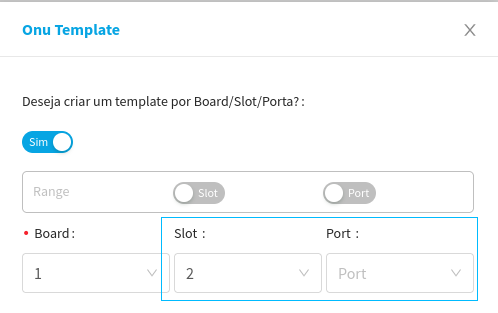
Note that the Slot and Port fields will only be enabled if the previous one is filled in.
-
Therefore, one depends on the other to be filled in.Board --> Slot: Slot selection is only enabled if Board is filled in
-
Slot --> Port: Port selection is only enabled if Slot is filled in
+ The same is true when range selection is active.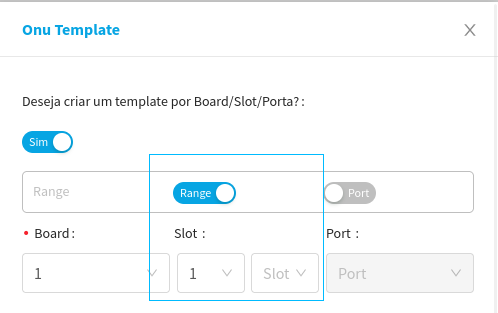 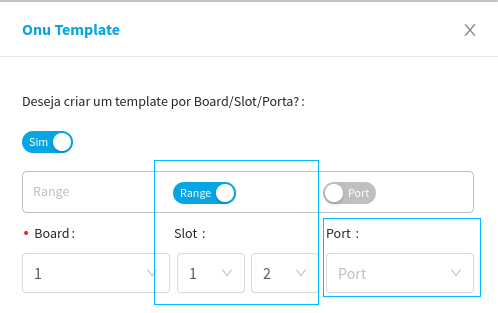
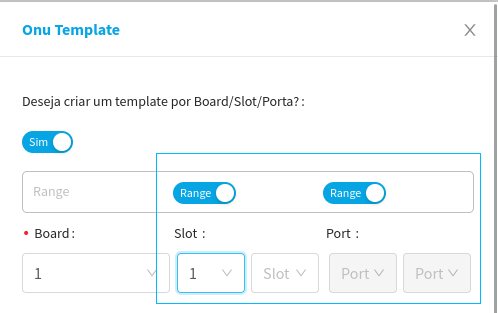
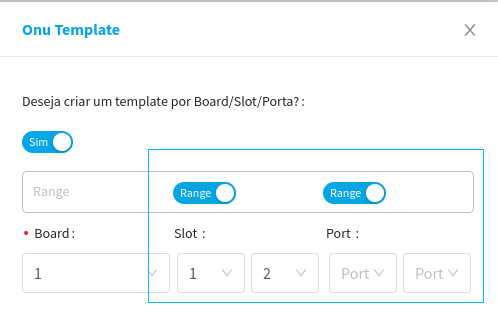
Board --> Slot fields will only be enabled when the Board field is filled in.
Slot --> Port: The Port field will only be enabled when both fields referring to Slot are filled in.
- We will continue with the following data: Board --> 1, Slot --> 1 - 2, and Port --> 1 - 5.
-
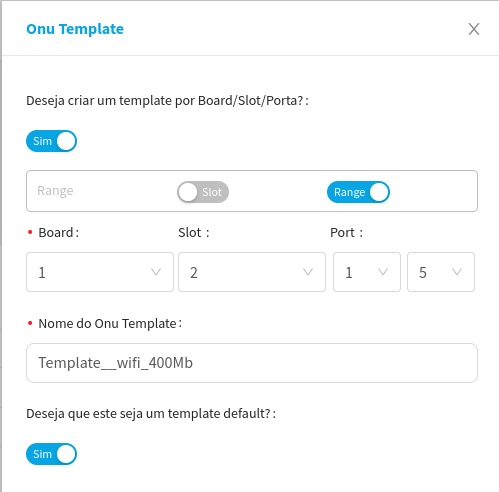
- The name field will be filled in with a name chosen by the user. It is worth remembering that spaces and special characters are not allowed, except for _ (underline) and - (hyphen).
- In this case, we'll call the template Template_WiFi_400MB.
- The default template tag will also be enabled.
- The default Template works as a bookmark so that, when active, it will be the template to be selected first. This function can also be used with Board/Slot/Port, making the filtered parameters more specific.
- The Line Profile is loaded from the OLT, so the field will only show users the line profiles belonging to that OLT.
-
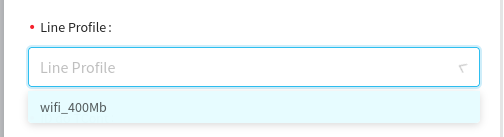
- Which in our case, we have the option of WiFi_400MB.
- Finally, let's select the VLANs; these are linked directly to the Line Profile.
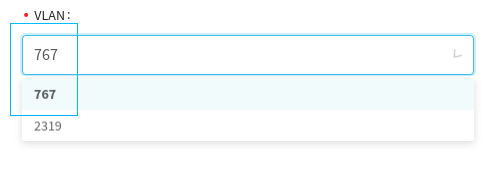
- In this field, a list of all the VLANs that are associated with the Line Profile will be displayed, and the user can choose one.
- Now, we can say that we have finished filling in the data to create our template. That said, our screen should look like this:
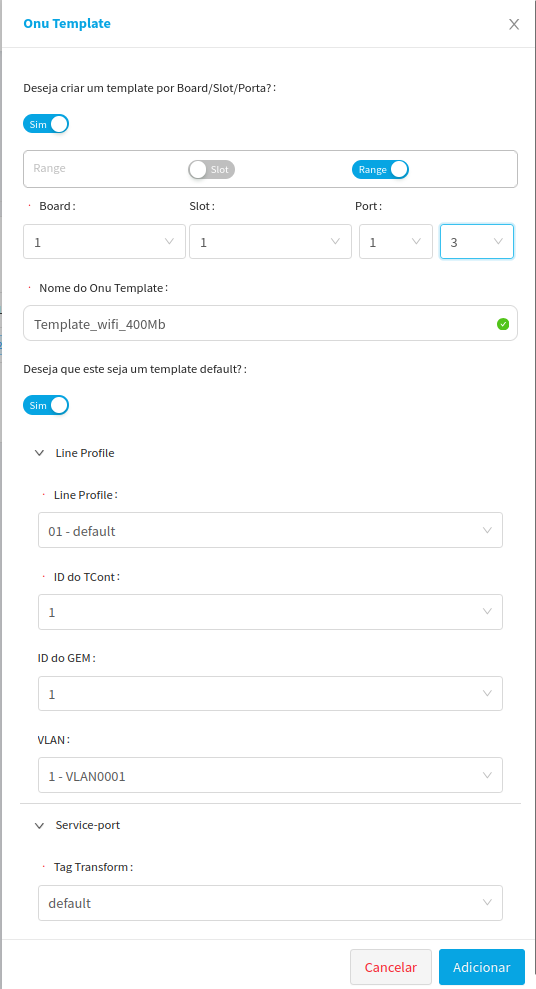
- By clicking the button Add in the lower right corner, the template will be created, the side menu will close and our new template will be listed.
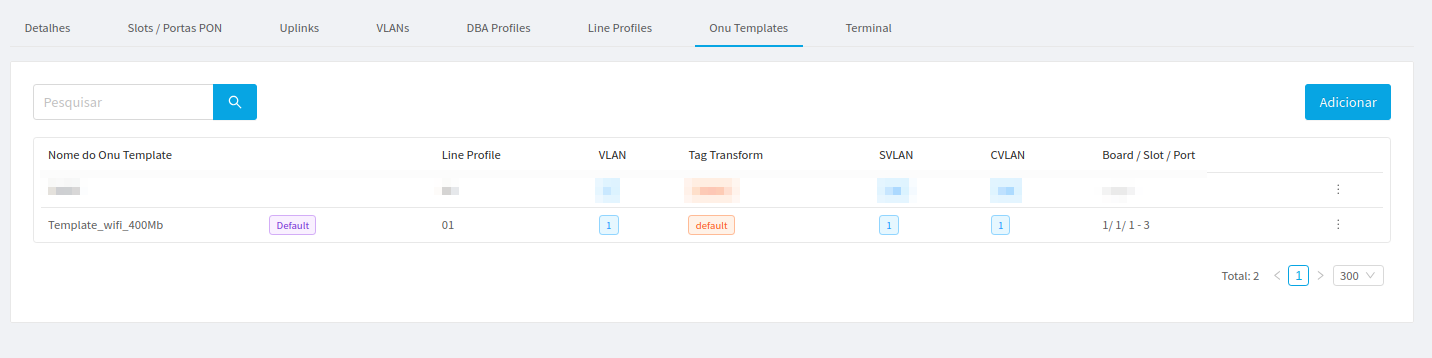
¶ With a template created, we now have the option of provisioning an ONU with a ready template.
- Using the Navigation Bar, we will click on the option Unauthorized onus
- A side menu will open listing all the ONUs that have not yet been provisioned.
-
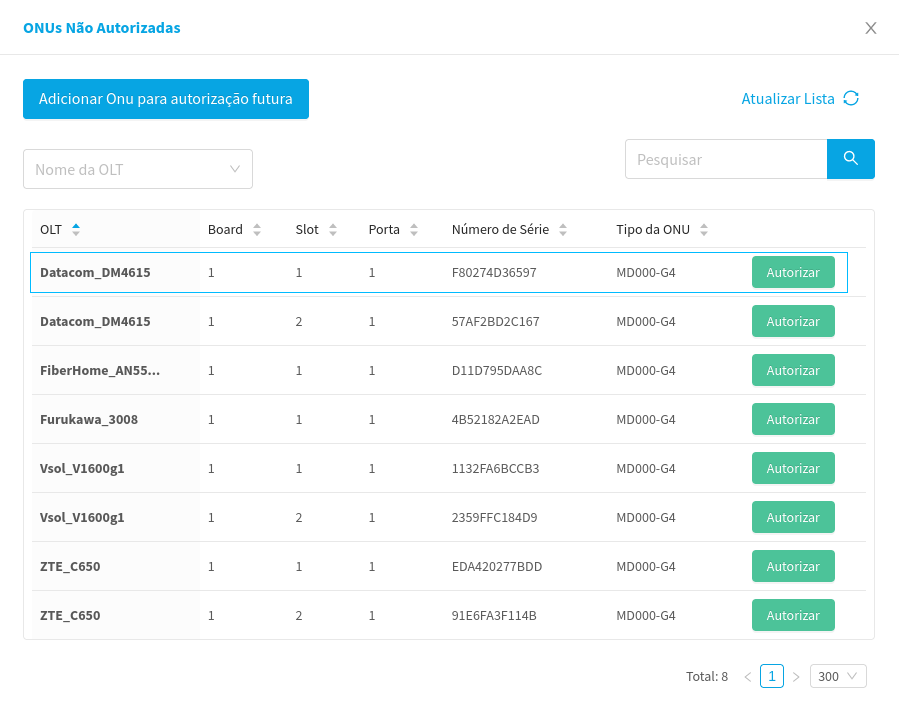
- Since we created a template in OLT Datacom_DM4615, we will select an ONU linked to that olt, in this case, we will click on Authorize at the first UN listed.
- Another side menu will open, this time, with the data pertaining to the UN.
-
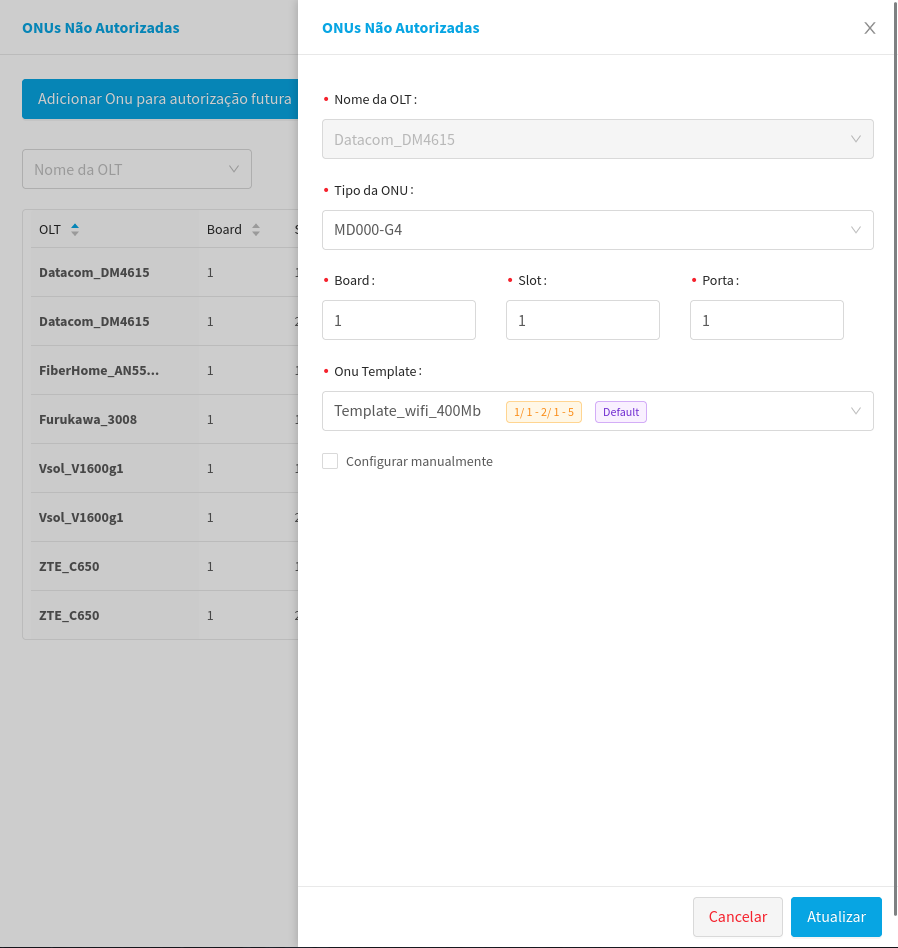
- It should be noted that the system identified a template that matches the board, slot, and port parameters of the UN and has already uploaded it to us.
- In this case, if our template had a single slot in 2, it would not be displayed here.

- We changed the configuration of our template, and it is not displayed in the ONU, because the parameters do not match, however, if we access another ONU that has Slot 2, the template will be displayed normally.
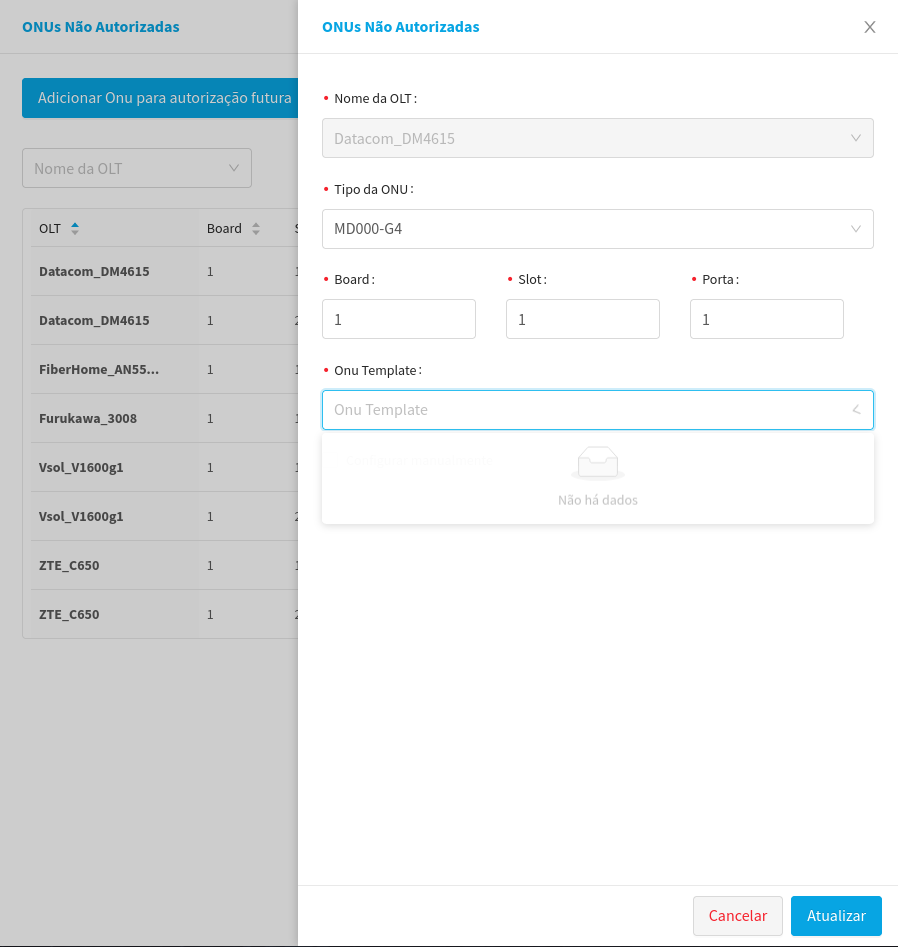
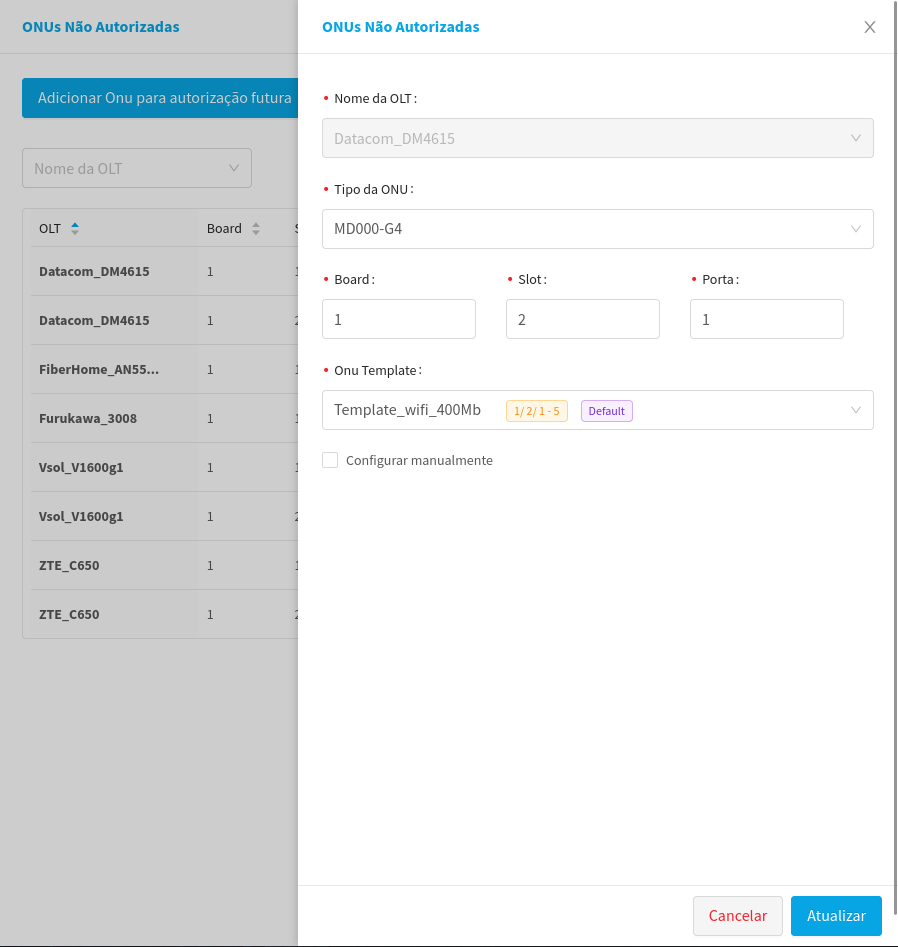
- When selecting the template and clicking update in the lower right corner, the UN will be enabled and will be moved to the authorized ONUs screen, with the data of the selected template.
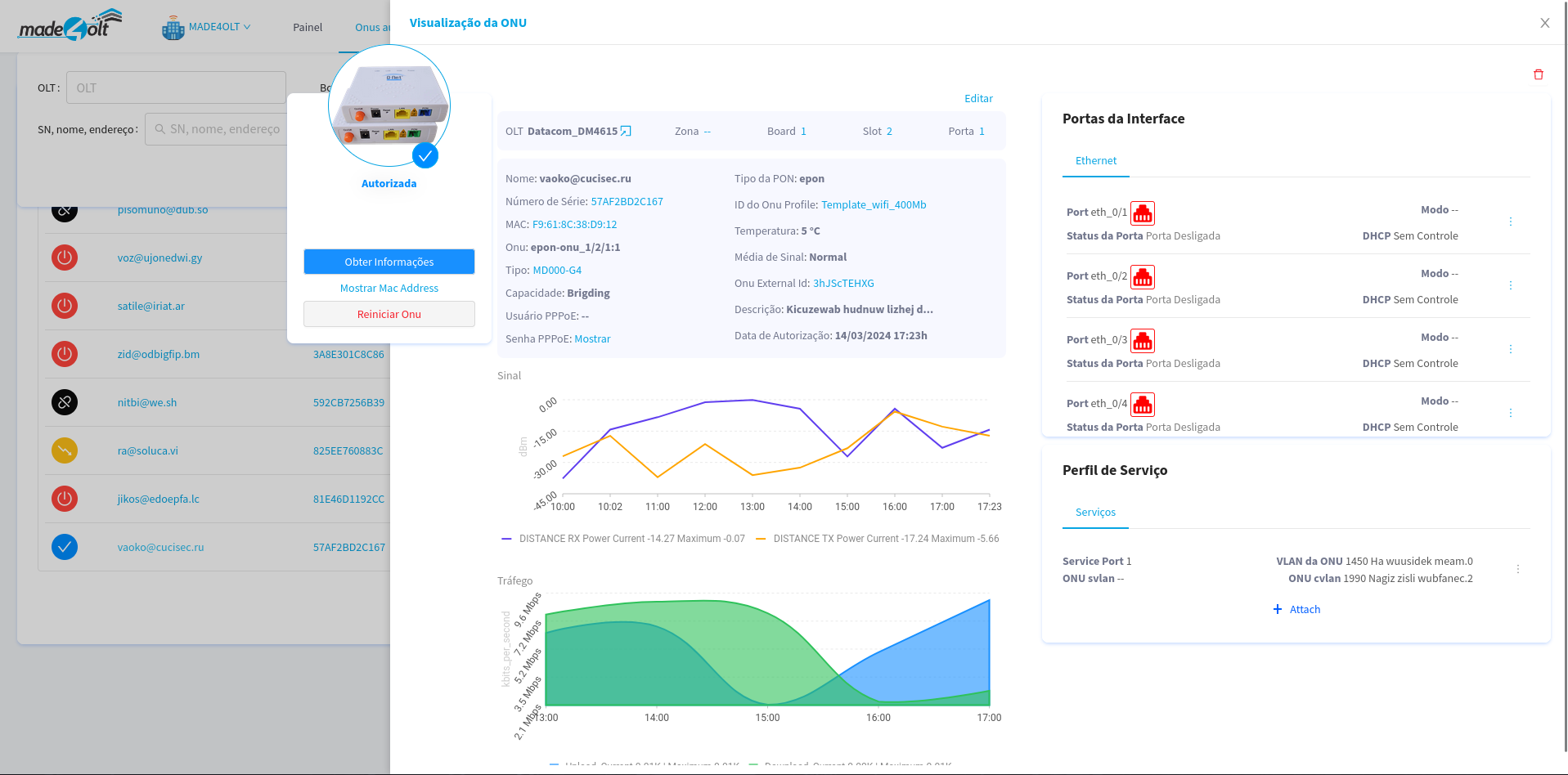
¶ With this we completed the creation of a new Template using Made4olt.
All data used in this manual are fictitious and for demonstration purposes only.