¶ Registering Database on Made4graph
This guide shows how to register a database on Made4graph.
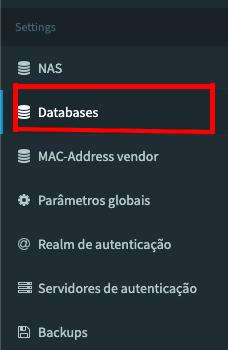
First we go to the side menu and look for the part that is written”Databases”.
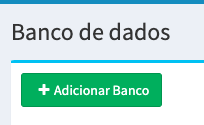
Once the next screen opens, we select the green “Add Bank” button
This will show us the following screen
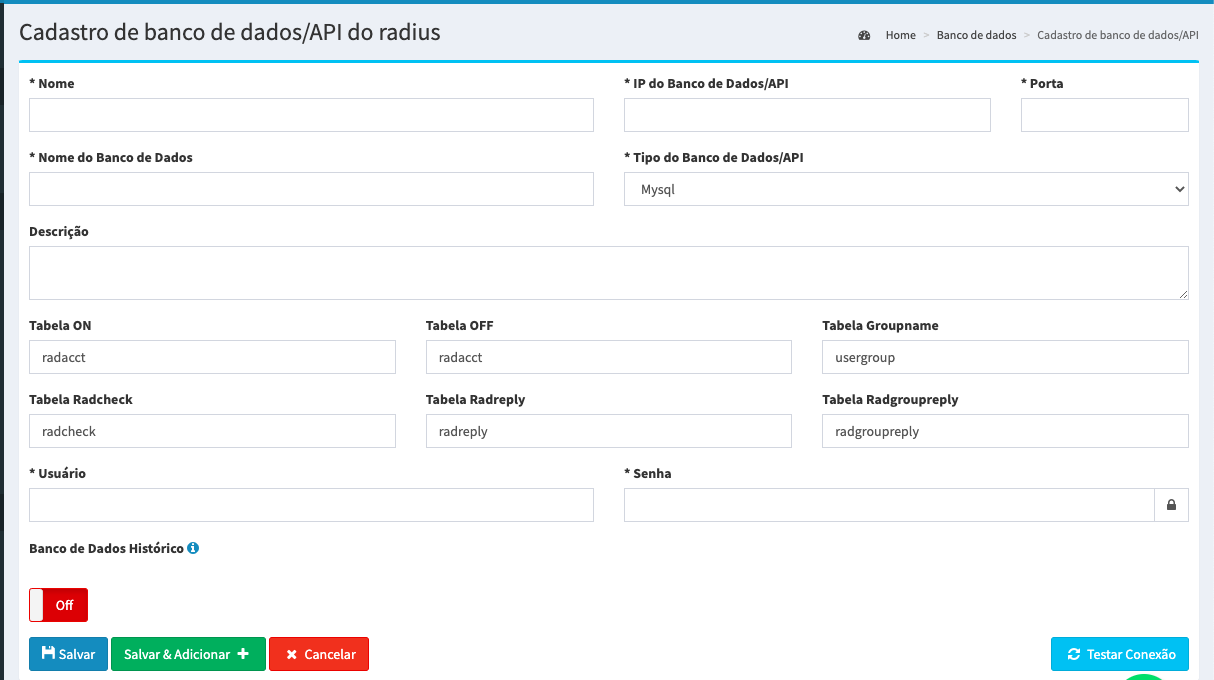
Now we need to fill in some information to add the bank to Made4graph, as shown in the images below:


Required information includes:
- Bank IP:
The IP address of the database server. - Database Name:
Name of the database. - Seat door:
The port used by the network protocol to identify a process running on a server. - Bank user:
Username created in the database. - Bank password:
Password for the database user account. - Name:
Name of the new connection.
¶ Validation of access to the bank
After registering the database access information, we now need to validate that the information is correct, and that access to the database was granted to Made4graph in the correct way.
To validate access, click the “Test Connection” button
Wait for the test to finish, and see if everything is ok, if everything is correct, the output will be something like this image
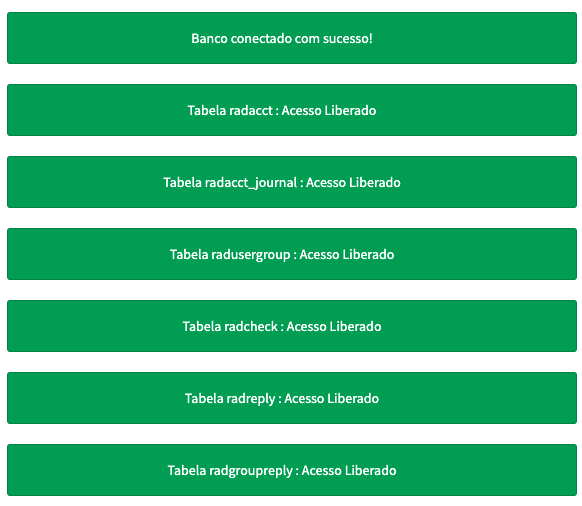
If the output is different from the one shown above, it is necessary to verify that the tables registered in Made4graph are the same as those that exist in the database of your Radius/ERP, if different, change the name in the field corresponding to the table and grant reading permissions. If the table does not exist, but the data is submitted to another table that is already registered, there is no problem with the field in red when validating, as the information is already coming from another source.
After registering the access information to the database, and the access has been validated, click on the buttonSAVE-, to save the new registration.

¶ Now let's move on to the examples in each of the databases, supported on Made4Graph
- MySQL
Open the system and click “New” to create a connection.
Select “MySQL” as the database type.
Enter the bank IP, database name, bank port, bank username, and bank password in the respective text boxes.
Give the new connection a name and click “Save”. - PgSQL
Open the system and click “New” to create a new connection.
Select “PgSQL” as the database type.
Enter the bank IP, database name, bank port, bank username, and bank password in the respective text boxes.
Give the new connection a name and click “Save”. - PgSQL Guest
Open the system and click “New” to create a new connection.
Select “PgSQL Guest” as the database type.
Enter the bank IP, database name, bank port, bank username, and bank password in the respective text boxes.
Give the new connection a name and click “Save”. - SQLServer
Open the system and click “New” to create a new connection.
Select “SQLServer” as the database type.
Enter the bank IP, database name, bank port, bank username, and bank password in the respective text boxes.
Give the new connection a name and click “Save”.
¶ What contact can the customer contact with Made4it in case of questions?
Information can be transmitted through the following communication channels:
- Email: contato@made4it.com.br
- Telephone: +55 (43) 3047-8340 or +55 (43) 9-8485-4013
- WhatsApp: +55 (43) 9-8485-4013
After passing the information to the service team, a request will be opened with the responsible sector, and the responsible sector will send you the return of your call.